|
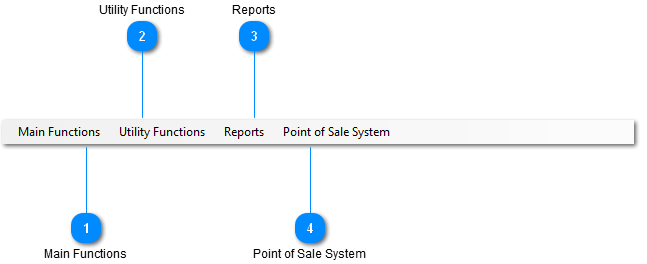
 Main Functions
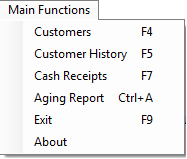
Contains dropdown for most used user functions.
-
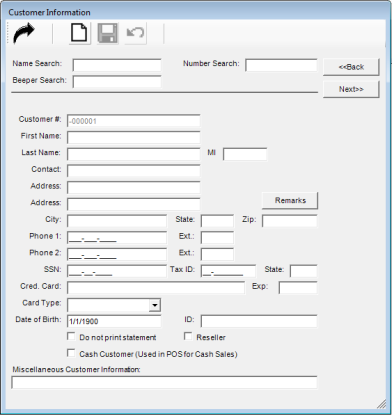
Customer - Add a new customer or update a current customer to the database.
-
Customer History - Creates a History report with Invoice, Invoice date, Check No., Invoice Amount, Payment, Due, Are, by enter either Name, Number or by Beeper Search.
-
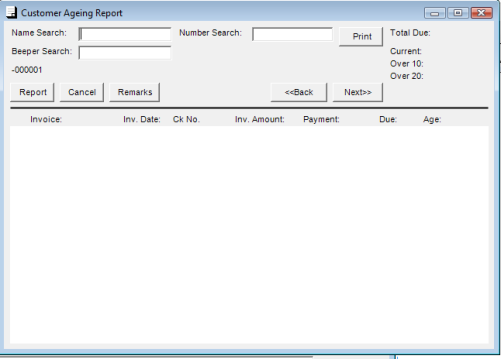
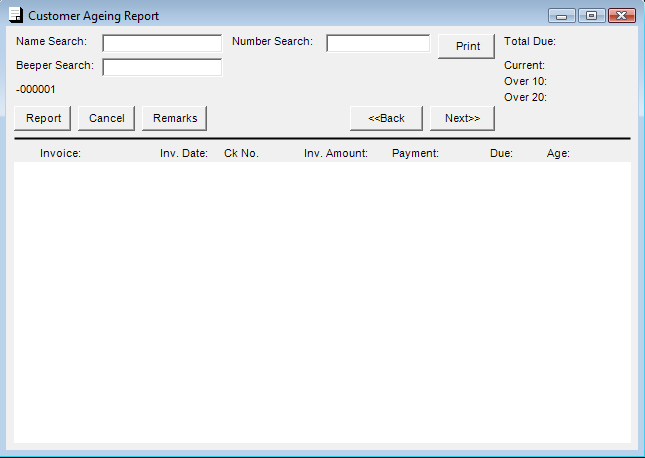
Aging Report - Creates an aging report with Invoice, Invoice date, Check No., Invoice Amount, Payment, Due, Are, by enter either Name, Number or by Beeper Search.
| |
 Utility Functions
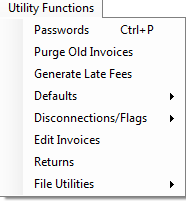
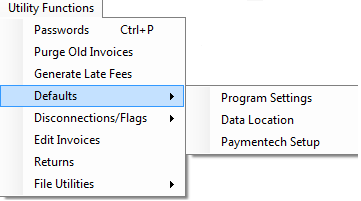
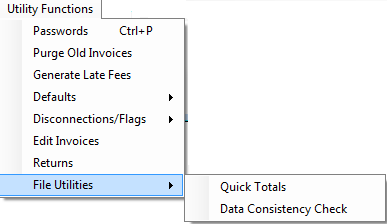
Contain dropdown selections which to perform a specific task for managing the mRev Pro system.
-
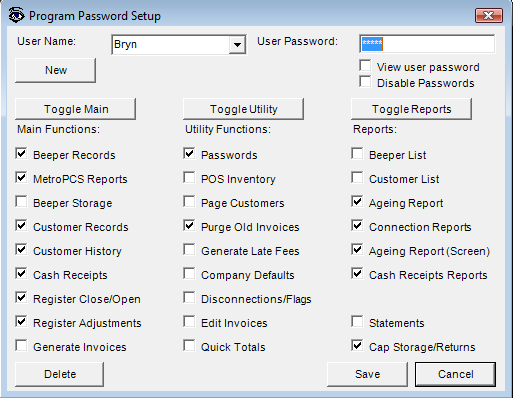
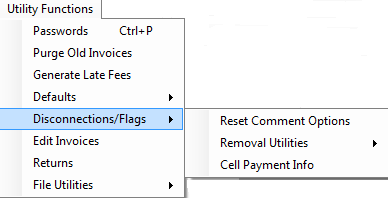
Passwords - Setup / reset Password for mRev Pro.
-
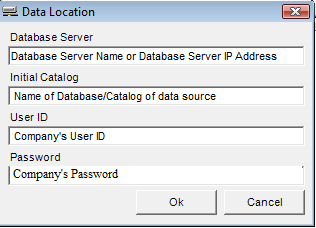
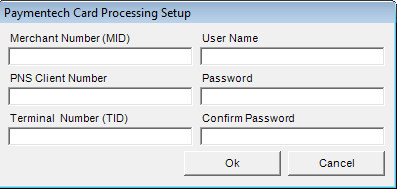
Settings - Is a submenu for initializing your setup for the Program (Store Settings), Data Location (Database connection settings), and Paymentech (Credit Card payment settings).
-
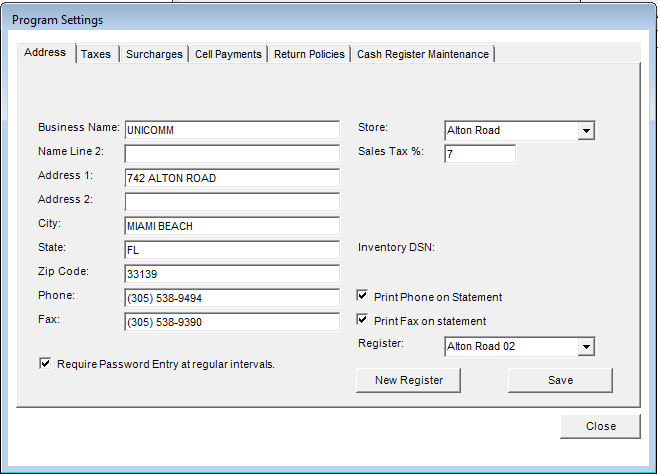
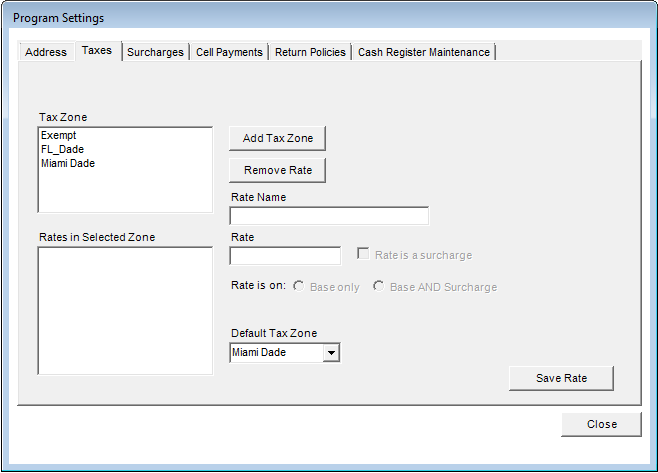
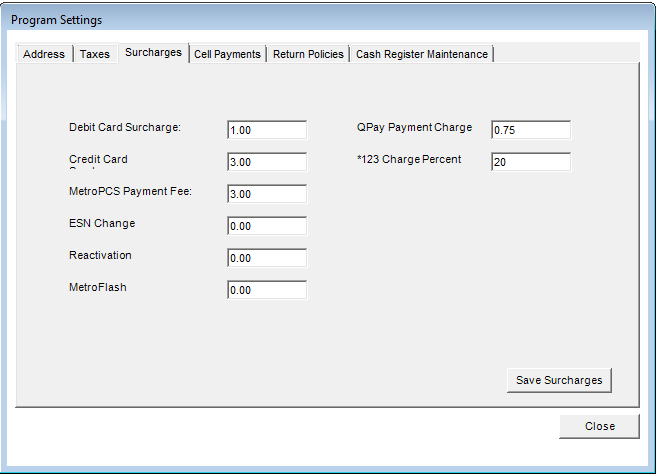
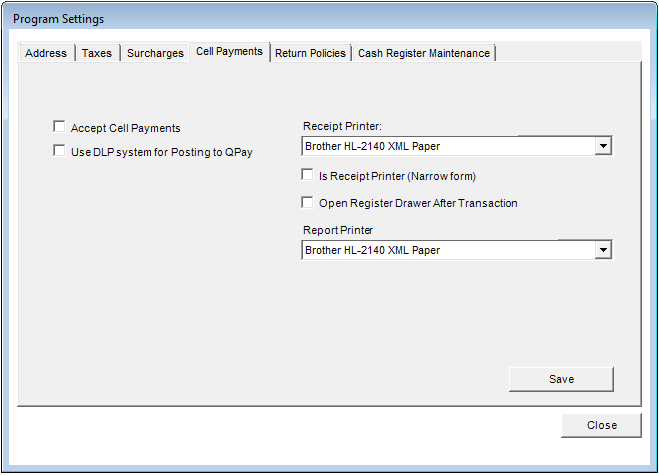
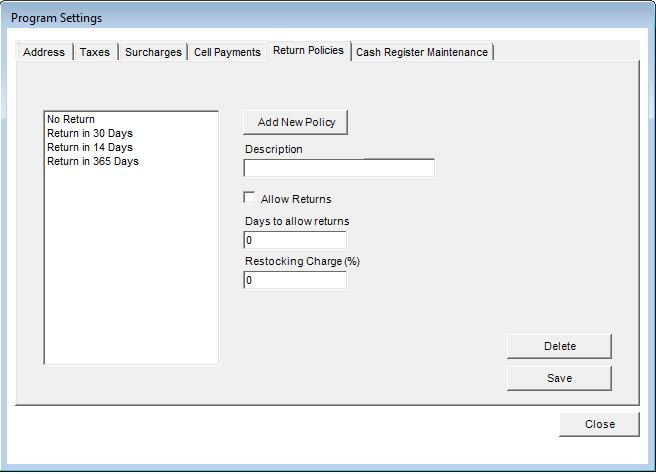
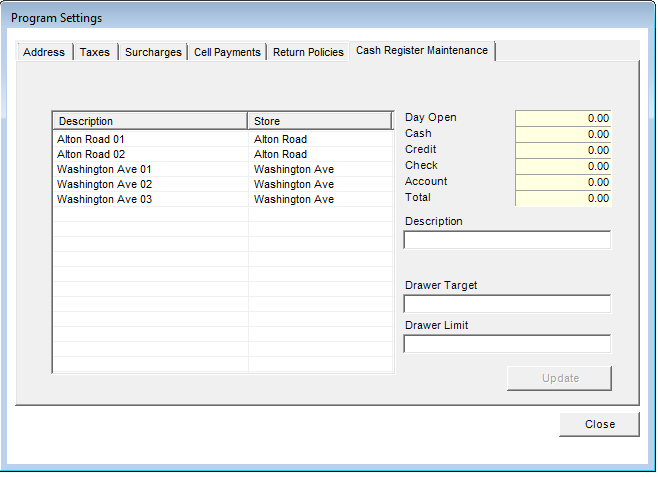
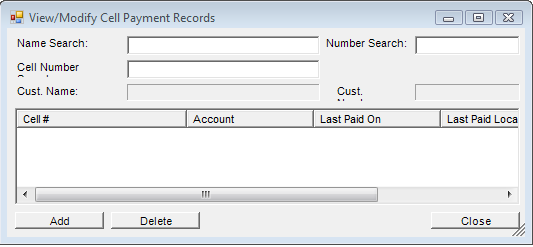
Company Settings - allow changes to store settings; Address, Taxes, Surcharges, Cell Payments, Return Policy, and Cash Register Maintenance.
Company Settings Tabs
-
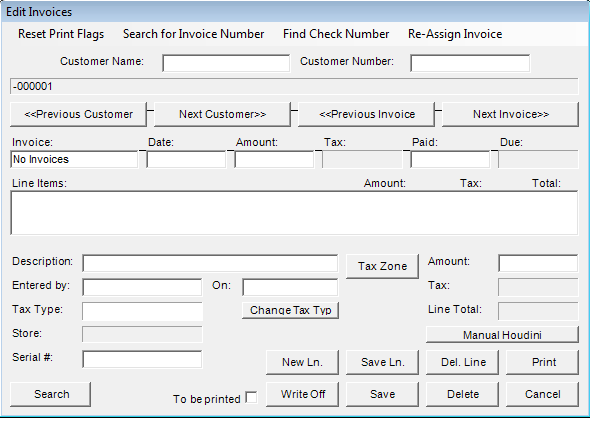
Edit Invoices - Allows edit Invoices by doing a search for Invoice number, by Check Number or Reassign an invoice.
-
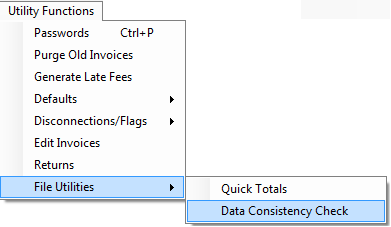
File Utilities - Submenu for report of Company's totals, and Data Consistency hard Copy report.
-
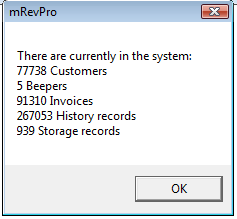
Quick Totals - Gives Company's totals of Customers, Beepers, Invoices, History Records, and Storage Records.
-
Data Consistency Check - Creates hard copy of problems for Tax Zones, Carriers, Invoice Customer Number are Blank, Invoice Customer Number Invalid, and Invoice Dates for all Company's stores.
| |
 Reports
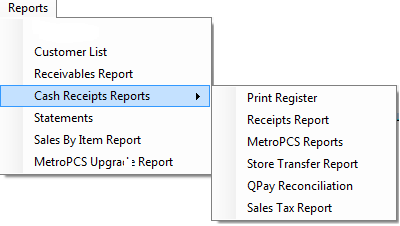
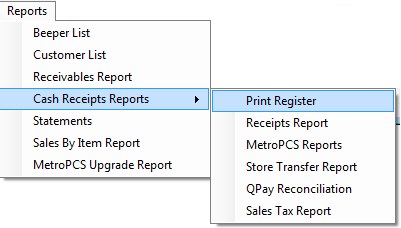
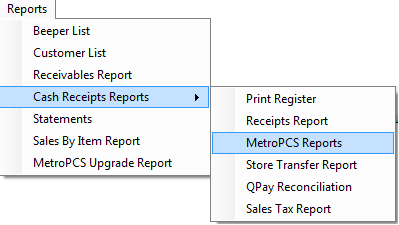
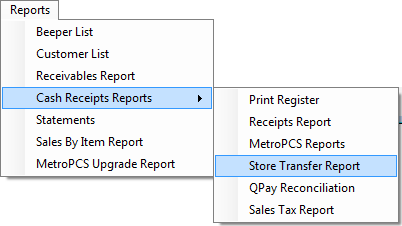
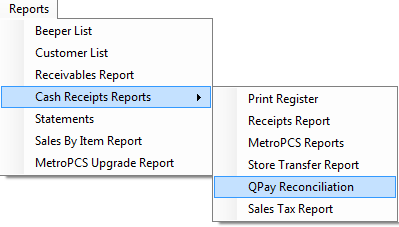
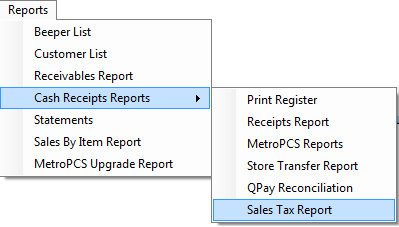
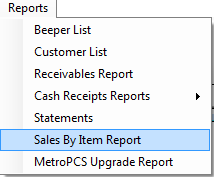
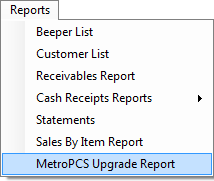
Contains dropdown selections for canned reports.
-
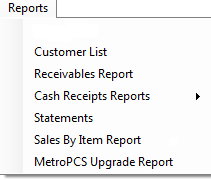
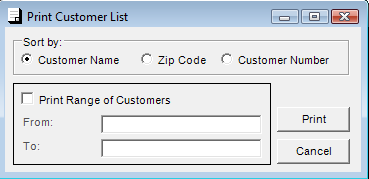
Customer List - Print Range of Customers, sort by Customer Name, Zip Code, Customer Number.
-
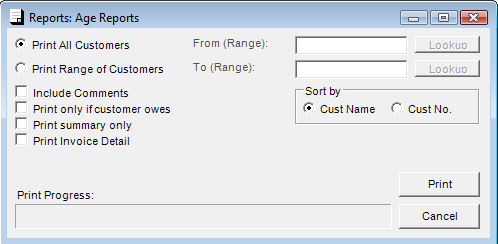
Receivables Report - Print Receivables by all Customers, Range of Customers. include comments, print only if customer owes, Print Summary only, print Invoice Detail and sort report by Customer name or Customer number.
-
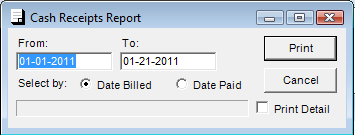
Receipts Report - Print range of Cash Receipts, select by Date billed or Date Paid include Print Detail if needed.
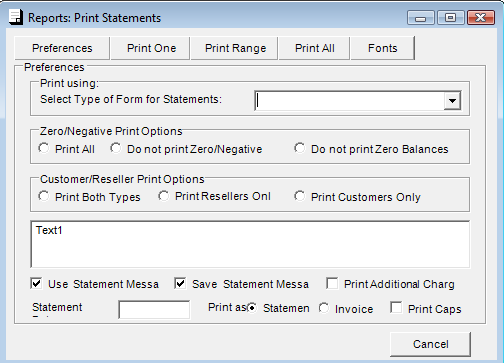
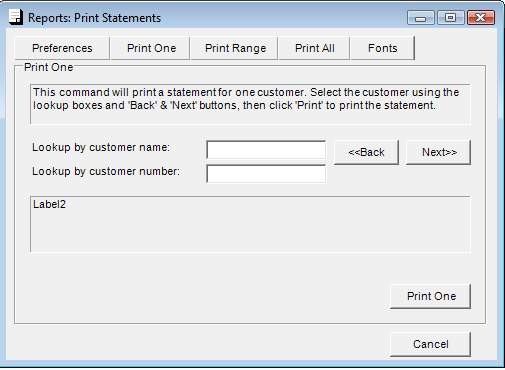
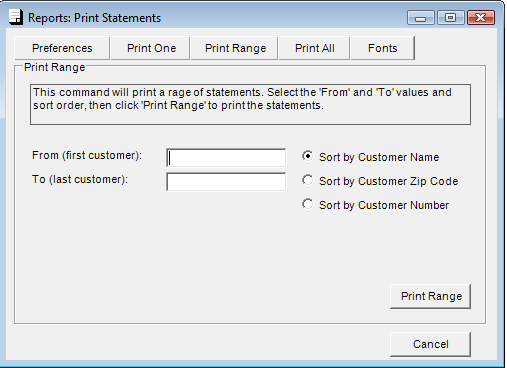
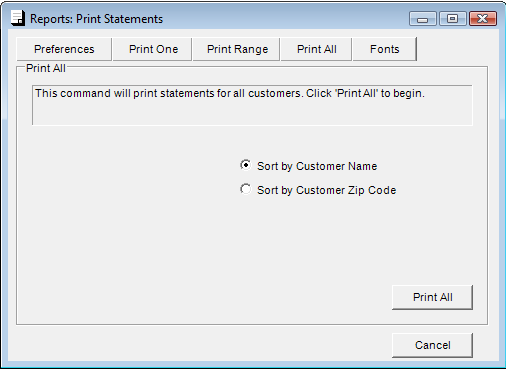
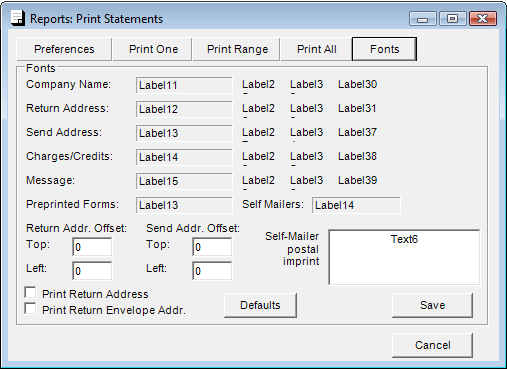
Statements Tabs
| |
 Point of Sale System
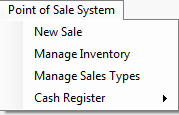
Contains a dropdown selections for Point of Sales functionality.
-
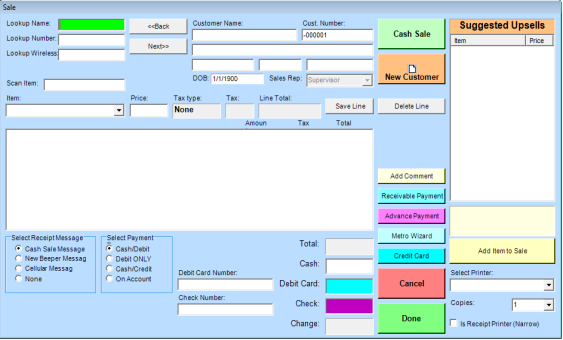
New Sale - Ability to insert new customer or query a customer by Lookup name, Lookup number or Lookup Wireless. Enter a Cash or Credit Card Sale, add Comments, Receivable Payments, Advance Payments, an interface to the Metro Wizard to Activate Account, Reactivation, ESN change and Activate Houdini. Suggested Up-sells allows your employees to add accessories to sale from database inventory. Ability to select a printer and number of copies.
-
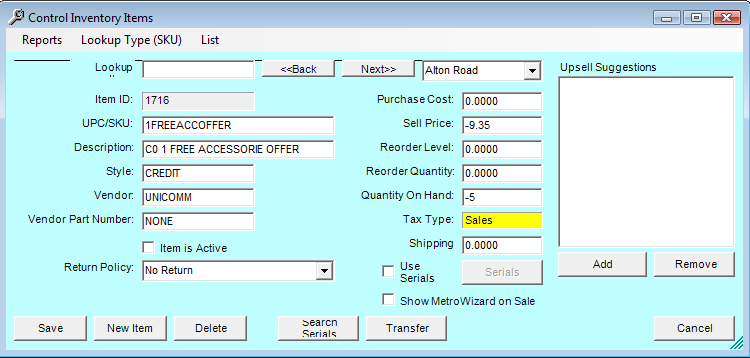
Manage Inventory - Lookup inventory by SKU, description and / or by store. Create Inventory reports, Count sheets, Reorder reports, and show Inactive Items.
-
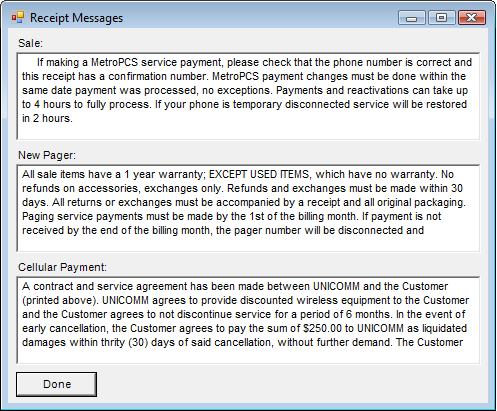
Manage Sales Type - Contract information between customer in store pertaining to sale, New Pager, and / or Cellular payment.
-
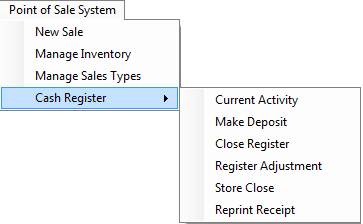
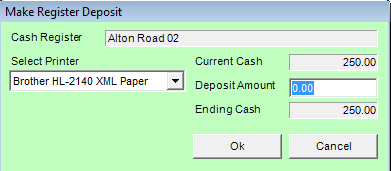
Make Deposit - Cash Register reaching a set amount of money, Management may required to make a deposit of the excess amount of cash in register.
Step 1. Enter Deposit Amount Click "Ok".
a. A receipt will be Printed.
-
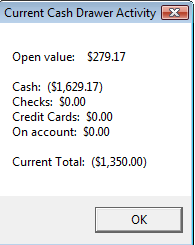
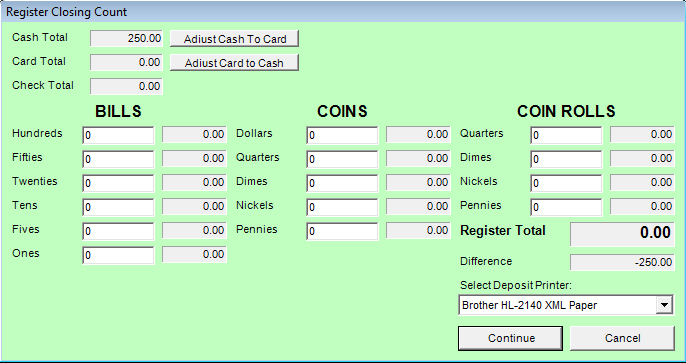
Close Register - Make a closing Deposit, and / or do a Register Closing Count.
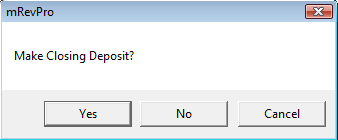
Step 1. Click on Close Register the popup appears.
a. Click "Yes" if a deposit needs to be made before closing
then go to Step 2.
b. Click "No" go to Step 3.
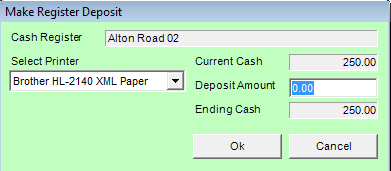
Step 2. Enter Deposit Amount Click "Ok".
a. A receipt will be Printed.
b. Go to Step 3.
Step 3.Enter each denomination amounts, example 10 dollars in ones, enter 10 in the ones. 1 dollar in dimes, enter 10 dimes. For Coin Rolls ff you have two rolls of quarters each roll is equal to $10.00 or 40 quarters, just enter under Coin Rolls next to quarters 2.
-
Click "Continue" to complete Process.
-
To complete just click "Ok" to Print.
-
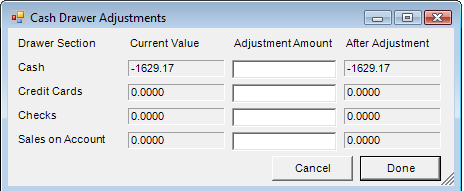
Register Adjustments - Cash drawer Adjustments is used whenever there might be a discrepancy between the monies in hand and the cash register.
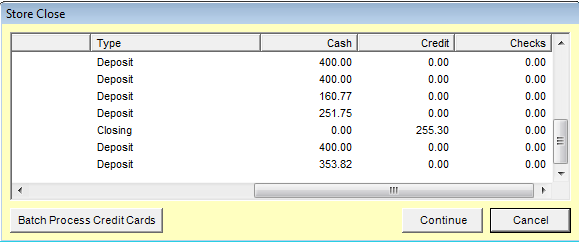
Store Close - Gives a complete total of deposit of each register by date, type, cash, credit and / or checks.
| |
|
|