Passwords
                                                    mRev Pro
by TookWorks, Inc.

Passwords

Passwords
1

User Name Dropdown Field

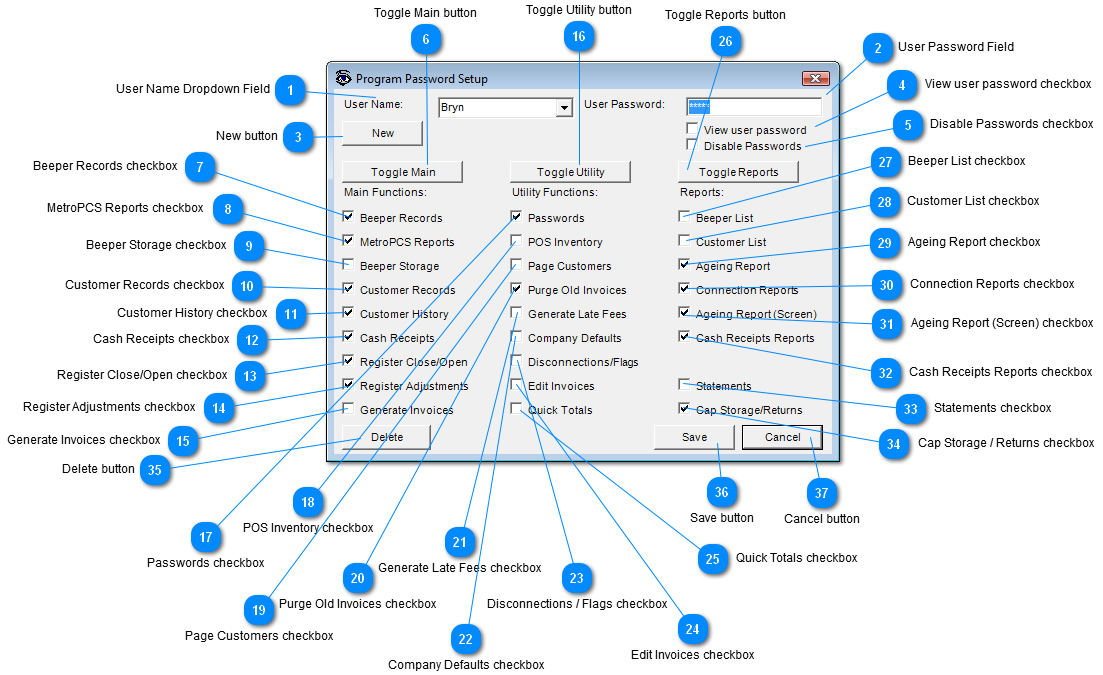
1. User Name Dropdown Field
List of all User names click on down arrow and double click on a user.
2

User Password Field

2. User Password Field
User encrypted Password is shown here.
 
*Note if new user is being entered, then enter your desired password here.
Go to View user password checkbox for more information.
3

New button

3. New button
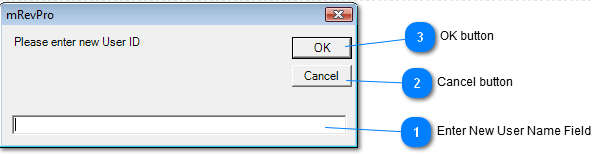
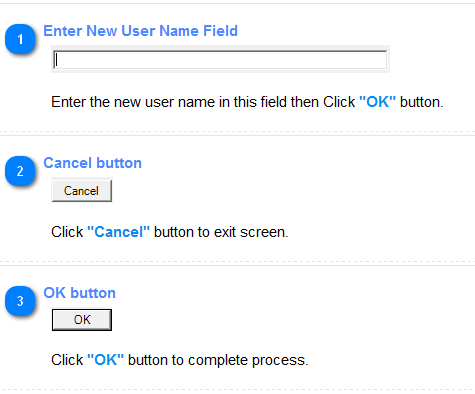
Click on "New" button to create a new user name.
Follow screen will appear;  
                                                                                      
 
4

View user password checkbox

4. View user password checkbox
Check the checkbox if you would like to see the unencrypted password.
5

Disable Passwords checkbox

5. Disable Passwords checkbox
Check checkbox to disable use of password.
6

Toggle Main button

6. Toggle Main button
Click on "Toggle Main" button to check or uncheck all checkboxes for Main Functions.
7

Beeper Records checkbox

7. Beeper Records checkbox
  • Check to give access Beeper records.
  • Uncheck to not allow access to Beeper records.
8

MetroPCS Reports checkbox

8. MetroPCS Reports checkbox
  • Check to give access MetroPCS Reports.
  • Uncheck to not allow access to MetroPCS Reports.
9

Beeper Storage checkbox

9. Beeper Storage checkbox
Check to give access MetroPCS Storage.
Uncheck to not allow access to MetroPCS Storage.
10

Customer Records checkbox

10. Customer Records checkbox
  • Check to enable the Customers Main Function menu item.
  • Uncheck to disable the Customers Main Function menu item.
11

Customer History checkbox

11. Customer History checkbox
  • Check to enable the Customer History Main Function menu item.
  • Uncheck to disable the Customer History Main Function menu item.
12

Cash Receipts checkbox

12. Cash Receipts checkbox
  • Check to enable the Cash Receipts Main Function menu item.
Uncheck to disable the Cash Receipts Main Function menu item.
13

Register Close/Open checkbox

13. Register Close/Open checkbox
  • Check to enable the Cash Register Point Of Sale Menu item.
  • Uncheck to disable the Cash Register Point Of Sale Menu item.
14

Register Adjustments checkbox

14. Register Adjustments checkbox
  • Check to give access Register Adjustments.
  • Uncheck to not allow access to Register Adjustments.
15

Generate Invoices checkbox

15. Generate Invoices checkbox
  • Check to give access Generate Invoices.
  • Uncheck to not allow access to Generate Invoices.
16

Toggle Utility button

16. Toggle Utility button
Click on "Toggle Utility" button to check or uncheck all checkboxes for Utility Functions.
17

Passwords checkbox

17. Passwords checkbox
  • Check to give access Password utility.
  • This box cannot be unchecked.
18

POS Inventory checkbox

18. POS Inventory checkbox
  • Check to enable the Manage Inventory Point Of Sale menu item.
  • Uncheck to disable the Manage Inventory Point Of Sale menu item.
19

Page Customers checkbox

19. Page Customers checkbox
  • Check to give access Page Customer.
  • Uncheck to not allow access to Page Customer.
20

Purge Old Invoices checkbox

20. Purge Old Invoices checkbox
  • Check to enable the Purge Old Invoices Utility Functions menu item.
  • Uncheck to disable the Purge Old Invoices Utility Functions menu item.
21

Generate Late Fees checkbox

21. Generate Late Fees checkbox
  • Check to enable the Generate Late Fees Utility Functions menu item.
  • Uncheck to disable the Generate Late Fees Utility Functions menu item.
22

Company Defaults checkbox

22. Company Defaults checkbox
  • Check to enable the Settings Utility Functions menu item.
  • Uncheck to disable the Settings Utility Functions menu item.
23

Disconnections / Flags checkbox

23. Disconnections / Flags checkbox
  • Check to enable the Disconnections / Flags Utility Functions menu item.
  • Uncheck to disable the Disconnections / Flags Utility Functions menu item.
24

Edit Invoices checkbox

24. Edit Invoices checkbox
  • Check to enable the Edit Invoices Utility Functions menu item.
  • Uncheck to disable the Edit Invoices Utility Functions menu item.
25

Quick Totals checkbox

25. Quick Totals checkbox
  • Check to enable the Quick Totals Utility Functions - File Utilities menu item.
  • Uncheck to disable the Quick Totals Utility Functions - File Utilities menu item.
26

Toggle Reports button

26. Toggle Reports button
Click on "Toggle Reports" button to check or uncheck all checkboxes for Reports.
27

Beeper List checkbox

27. Beeper List checkbox
  • Check to enable the Disconnections / Flags Utility Functions menu item.
  • Uncheck to disable the Disconnections / Flags Utility Functions menu item.
28

Customer List checkbox

28. Customer List checkbox
  • Check to enable the Customer List Reports Functions menu item.
  • Uncheck to disable the Customer List Reports Functions menu item.
29

Ageing Report checkbox

29. Ageing Report checkbox
  • Check to enable the Receivables Report Reports Functions menu item.
  • Uncheck to disable the Receivables Report Reports Functions menu item.
30

Connection Reports checkbox

30. Connection Reports checkbox
Beeper Function not needed
31

Ageing Report (Screen) checkbox

31. Ageing Report (Screen) checkbox
  • Check to enable the Aging Report Main Functions menu item.
  • Uncheck to disable the Aging Report Main Functions menu item.
32

Cash Receipts Reports checkbox

32. Cash Receipts Reports checkbox
  • Check to enable the Cash Receipts Reports Reports Functions menu item.
  • Uncheck to disable the Cash Receipts Reports Reports Functions menu item.
33

Statements checkbox

33. Statements checkbox
  • Check to enable the Statements Reports Functions menu item.
  • Uncheck to disable the Statements Reports Functions menu item.
34

Cap Storage / Returns checkbox

34. Cap Storage / Returns checkbox
  • Check to enable the capping of Storage / Returns.
  • Uncheck to disable the capping of Storage / Returns.
35

Delete button

35. Delete button
Click "Delete" to remove user name.
36

Save button

36. Save button
Click on "Save" button to save user values.
37

Cancel button

37. Cancel button
Click "Cancel" button to exit screen.

Made with help of DrExplain