|
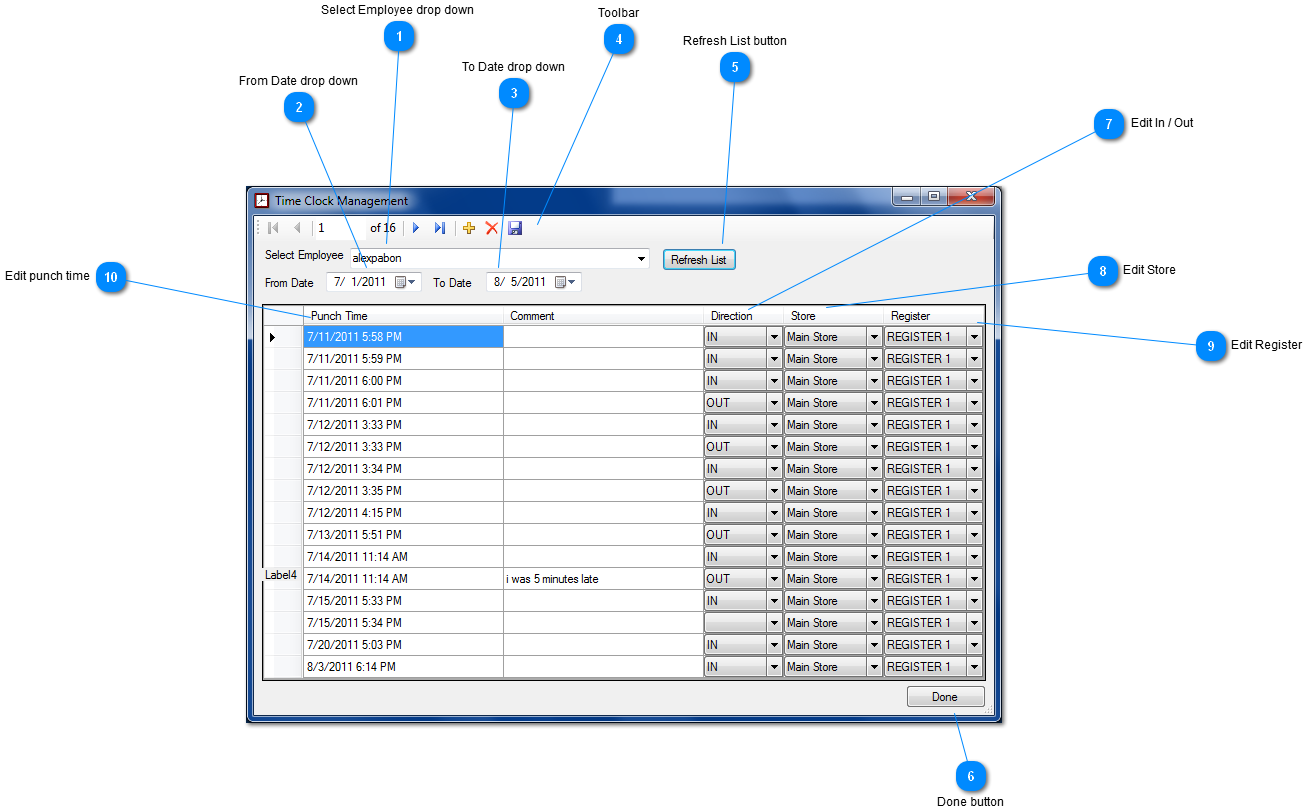
 Select Employee drop down
Click on the select employee drop down box and you will get a list of all the employees you have select one.
| |
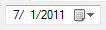
 From Date drop down
Clicking on the from date drop down box allows you to choose the date where you would like to begin your time clock report.
| |
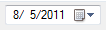
 To Date drop down
Clicking on the from date drop down box allows you to choose the date where you would like to begin your time clock report.
| |
 Toolbar
See Toolbar
| |
 Refresh List button
Clicking on the Refresh List button after selecting your options generates a time clock report that you can edit.
| |
 Done button
Clicking on the Done button exits you out of the Time clock management screen
| |
 Edit In / Out
If you wish to edit the Direction of the time clock report click the arrow pointing down, a drop down box will appear and you can choose between being In / Out .
| |
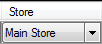
 Edit Store
If you wish to edit the store of the time clock report click the arrow pointing down, a drop down box will appear and you can choose between which store you want the report to show up under.
| |
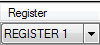
 Edit Register
If you wish to manage which register comes out on the time clock report for a certain shift. Click the arrow pointing down, a drop down box will appear and you can choose which register you would like to show on the report.
| |
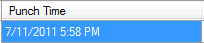
 Edit punch time
If you wish to edit the punch time of the time clock report click the box with the date and time, you can now type in any date or time you want to show on the report. DO NOT FORGET TO SAVE!!!
| |
|
|