|
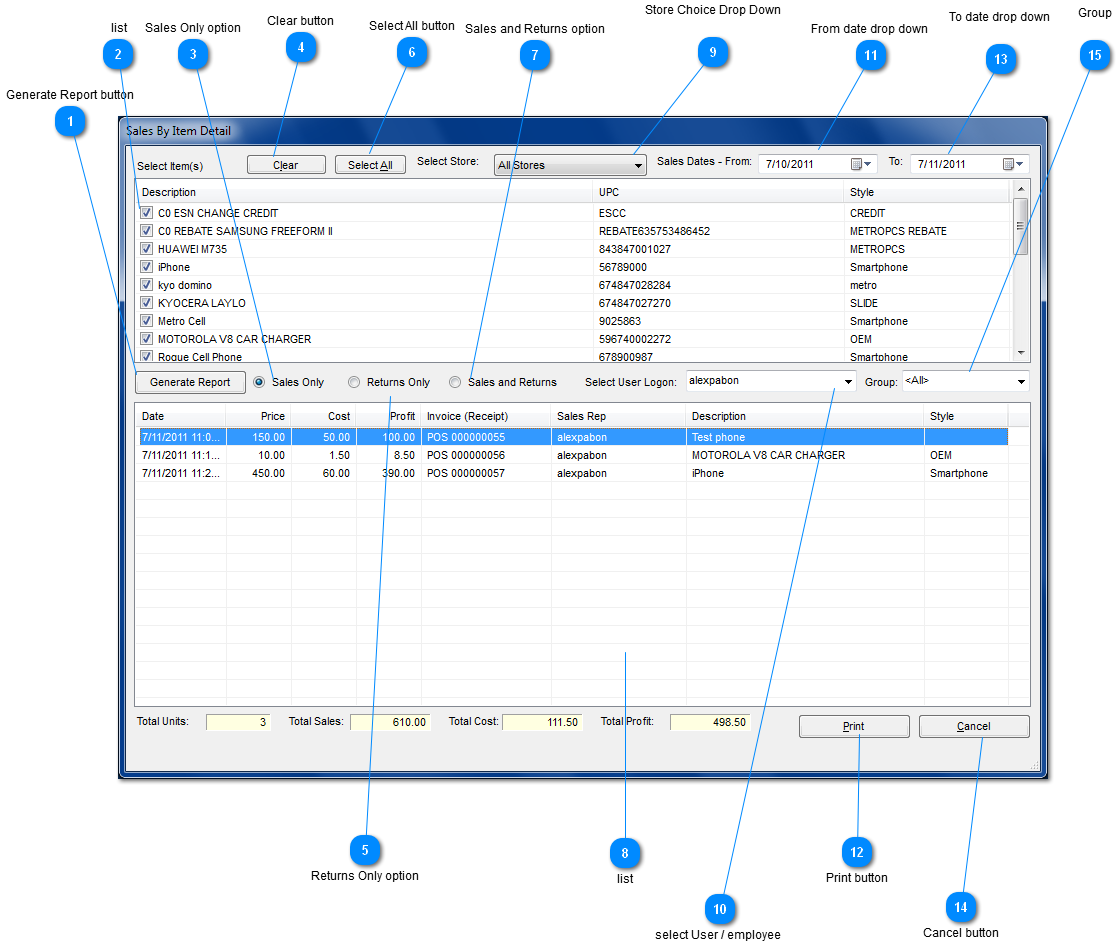
Sales By Item Detail window
 Generate Report button
Click on the "generate report" button after you have chosen your options, and you will get a detailed sales by item report on the list below based on what you have selected as your options.
| |
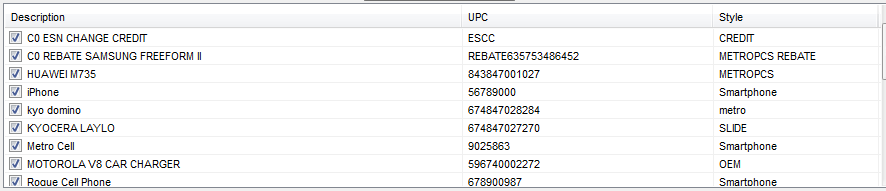
 list
A list of the items you are selling, you can select whichever one you are looking for, and as many as you want, based on what item or items you are looking to see a sales by item report for.
| |
 Sales Only option
Click the sales only option and click generate. Your sales by item report will generate the report based on sales made for the item or items you have selected, and it will appear on the bottom half of the window.
| |
 Clear button
Click on the "clear" button if you want to clear the items you selected under description.
| |
 Returns Only option
Click the returns only option and click generate. Your sales by item report will generate the report based on returns made for the item or items you have selected, and it will appear on the bottom half of the window.
| |
 Select All button
If you click the "select all" button it will select all the boxes (under description) of the items you want to generate a report for.
| |
 Sales and Returns option
Click the sales and returns option and click generate. Your sales by item report will generate the report based on sales and returns made for the item or items you have selected, and it will appear on the bottom half of the window.
| |
 list
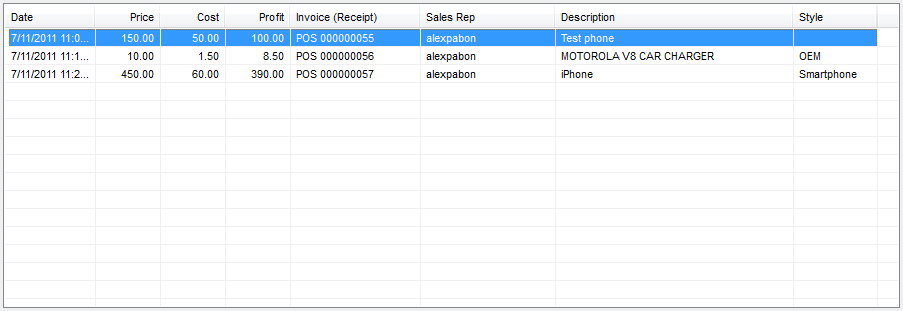
After you have gone through your options and you click generate the item or items that you selected will be detailed on this list located at the bottom half of the window date, time, price, cost, profit, invoice number or receipt number, sales rep, and the description will all be displayed on the list.
| |
 Store Choice Drop Down
Click on the store choice drop down box and you will be able to choose which store you would like to see a sales by item report for.
| |
 select User / employee
By clicking on the drop down box to the right of select user logon you are able to view a sales by item report for a specific employee or all employees
| |
 From date drop down
Click the drop down box to the right of Sales Dates- From, choose a date that you want to begin the sales by item report for.
| |
 Print button
Click the "print" button for the sales by item report on the list to print out (a print preview window will come out just click print in the print preview section)
| |
 To date drop down
Click the drop down box on the right of To, choose a date that you want to end the sales by item report for.
| |
 Cancel button
Click the "cancel" button and you will exit the sales by item report window
| |
 Group
When entering inventory you put a word or letters to associate the specific item with a group whether it be phones or accessories however you want to group that specific item. When you select the group drop down option it lets you select which group you want to generate a sales by item report for.
| |
|
|