|
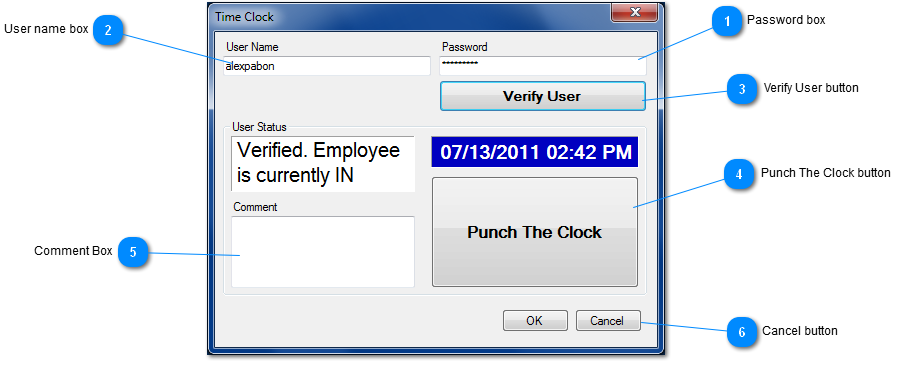
 Password box
This box allows you to type the password of the employee who wants to punch in or out of the time clock.
| |
 User name box
This box allows you to type the User name of the employee who wants to punch in or out of the time clock.
| |
 Verify User button
After you have typed in your user name and password click the "verify user" button. If information is entered correctly it will verify the employee that was typed in the user name, and give you the current status, right under the user status box. If you are punched in it will read you as in, or if you are punched out then it will read as out.
| |
 Punch The Clock button
After you have verified your status you can click "punch the clock". If you are already punched out a little window will pop out saying you are punched in. If you were in then it will punch you out.
| |
 Comment Box
Before clicking punch the clock you can type in a side note or comment.
| |
 Cancel button
The "cancel" button exits the time clock window.
| |
|
|